





















































Introduction
This section explains the process of adding a hosting slot to your reseller pack. Hosting slots provide the individual environments where your clients’ websites will run.
Adding the Slot
Click the Add Hosting Slot button. This will take you to the slot configuration screen.
Configuring the Domain
Every hosting slot requires a domain name. Your will see the following domain configuration screen.
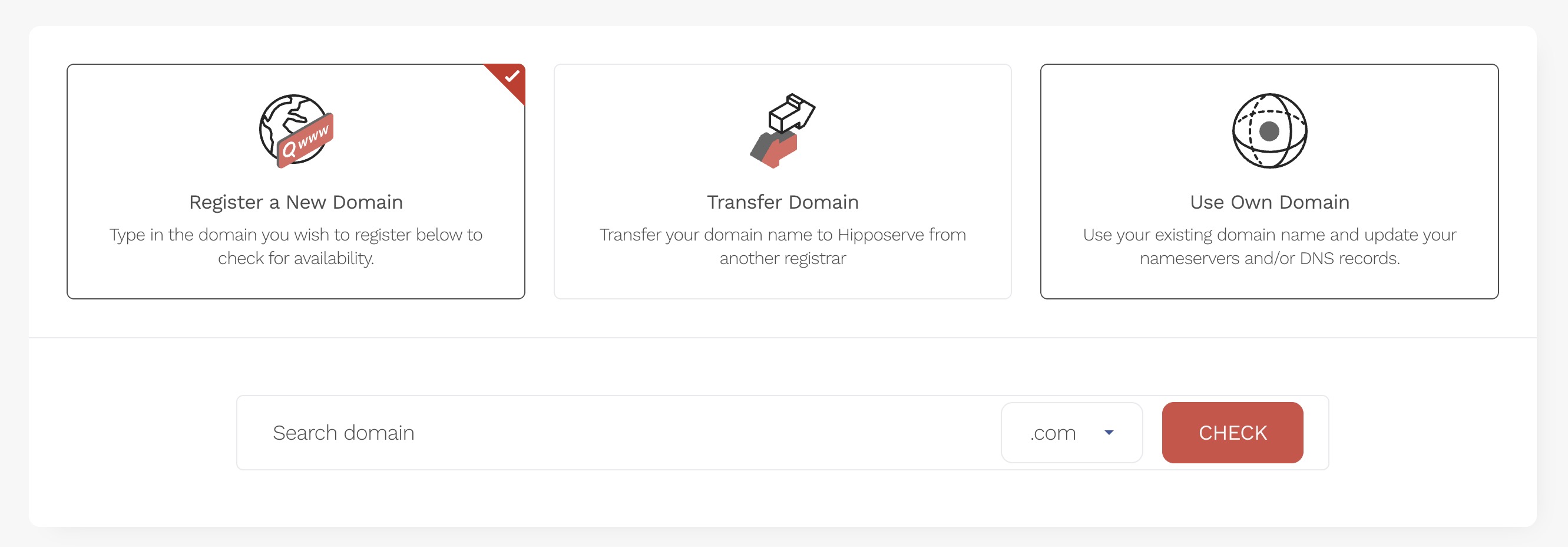
On the configuration screen you can:
-
Register a new domain with Hipposerve.
-
Transfer a domain to Hipposerve.
-
Use your own domain that you already own.
⚠️ If you choose to use a domain from a third-party provider, you will need to configure its DNS records to point to our service. If you experience any issues, please contact our support team for assistance.
Configuring the Hosting Slot
-
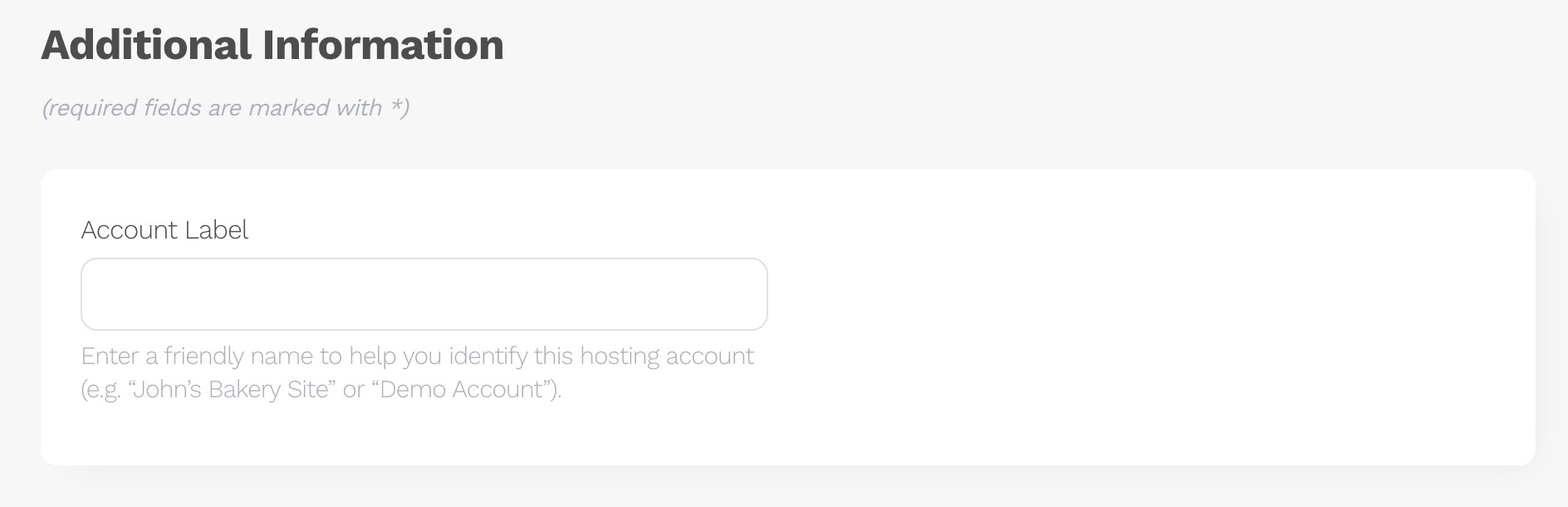
Account Label (optional): You can add a label to help identify which client the slot belongs to.
-
Add-ons: Select from a range of optional add-ons to meet your client’s needs, including:
-
Website Management
-
High Deliverability Webforms
-
Additional SSL Protection (basic SSL is included for free)
-
Website Security
-
Website Monitoring
-
ℹ️ Some add-ons may carry additional charges for each slot.
Once you are happy with your choices, click Continue.
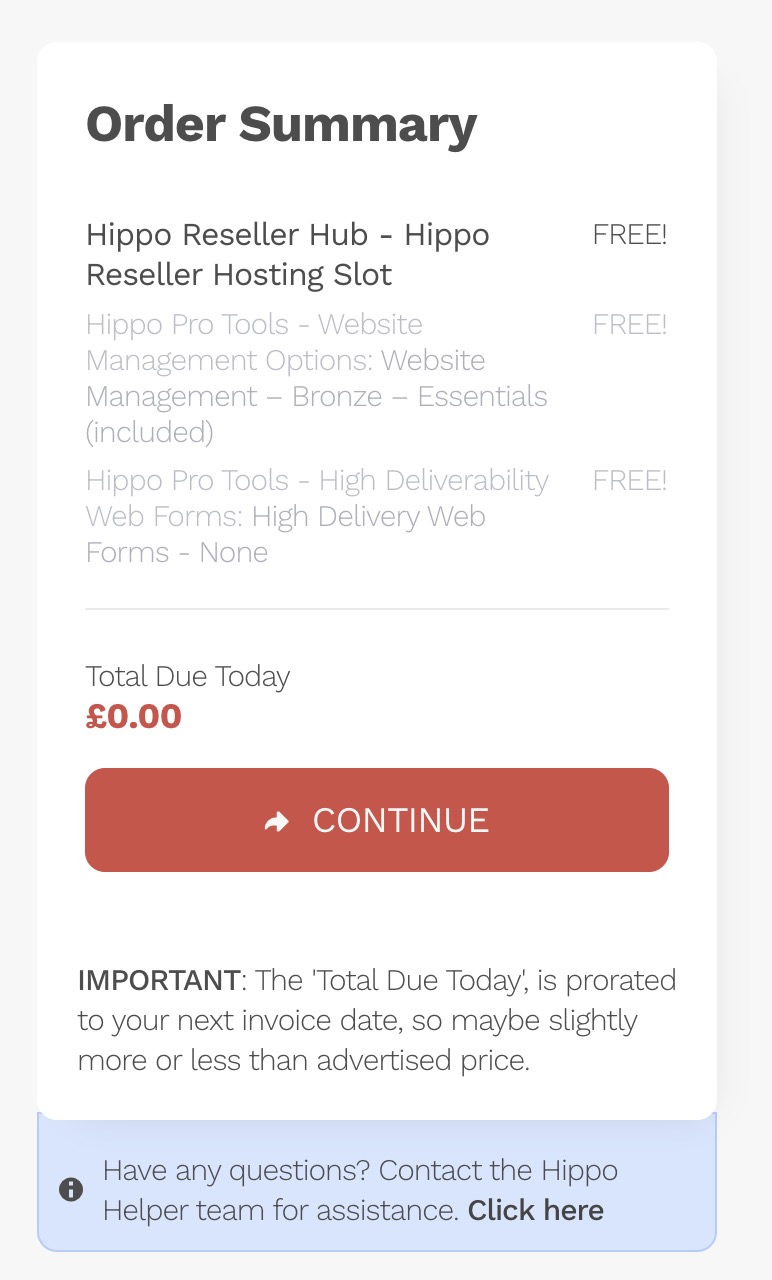
Completing the Checkout
You will then be taken to the checkout. Even if the order total is £0, you still need to select a payment method. After reviewing and accepting our Terms and Conditions, click the Checkout button to provision your slot.
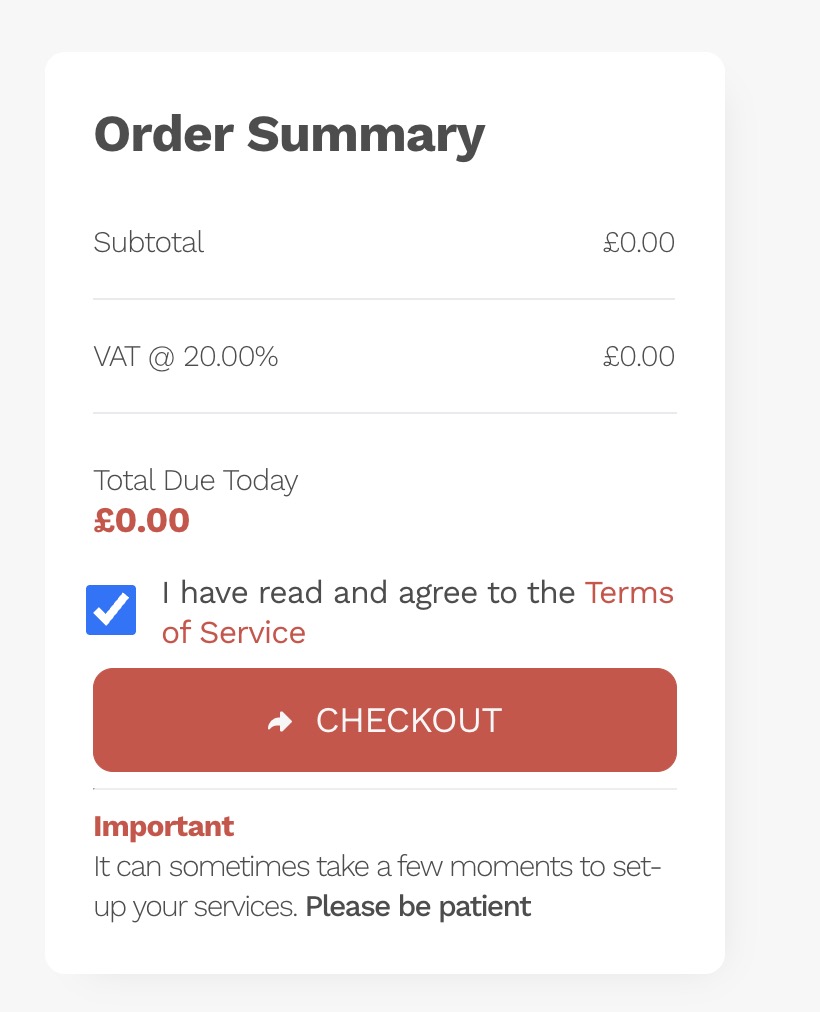
⏳ Provisioning can take a few moments. Please be patient while the system sets up your new hosting slot.
Confirmation
Once complete, you will:
-
Receive a confirmation email.
-
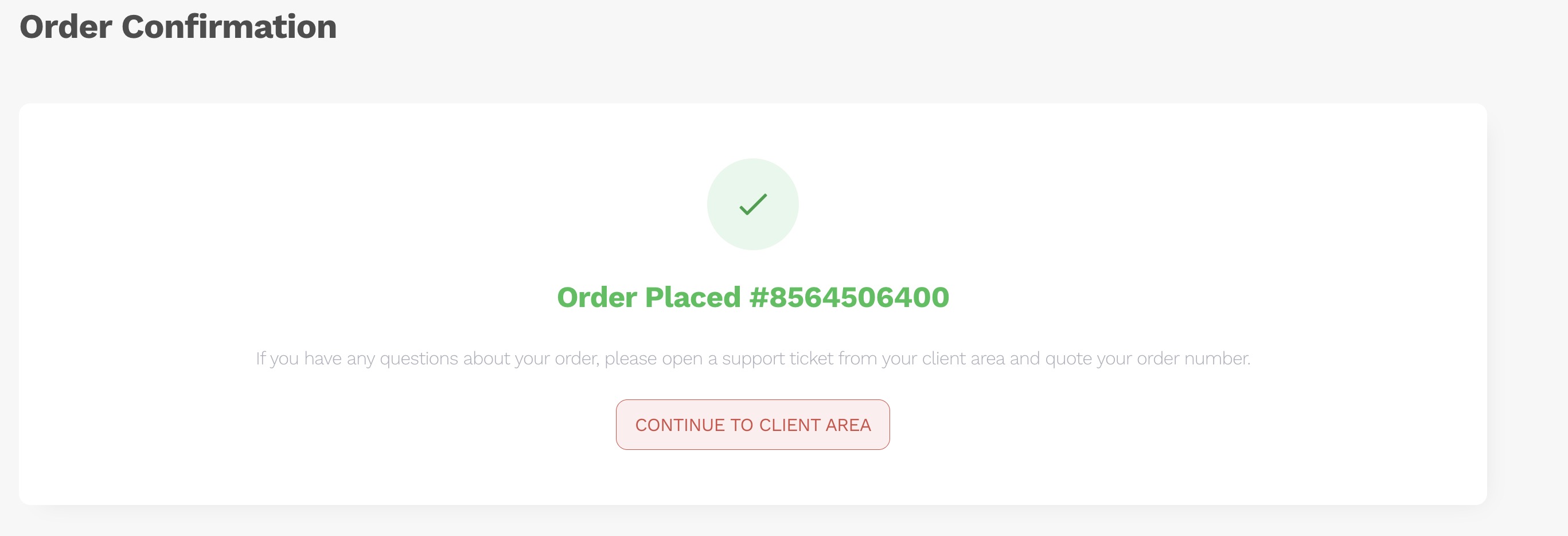
Be shown the order confirmation screen.
-
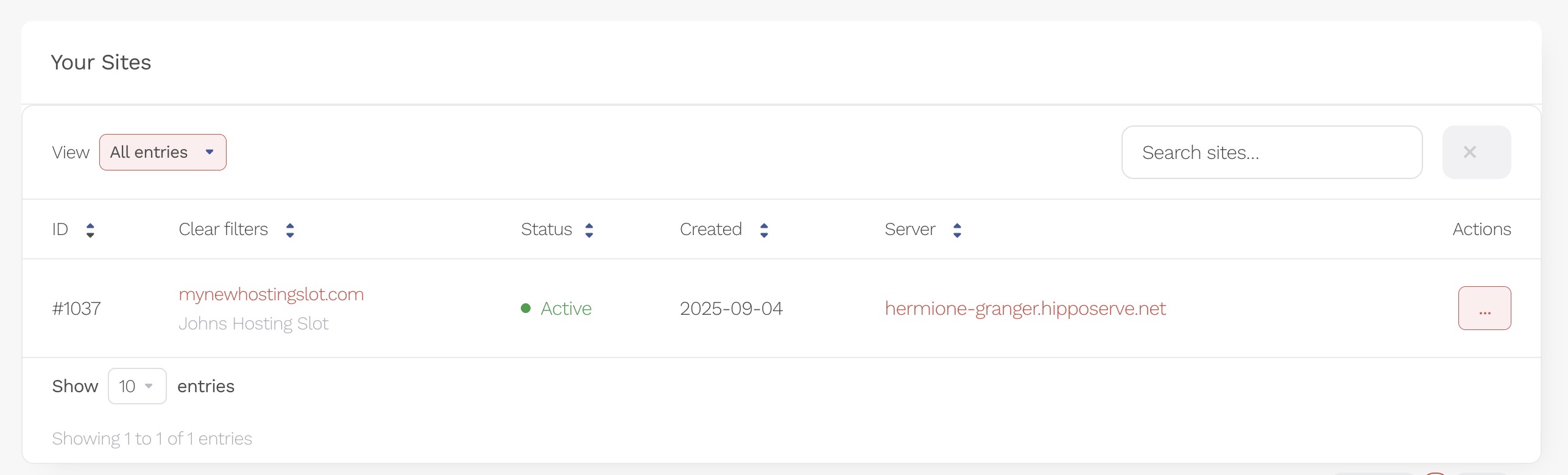
See your new slot appear in the Reseller Hub, ready to use.